Use the asset list
See every asset in the project as a list. Search by name, code or notes, sort by date, name, type or accuracy, and delete several at once.
On this page
The asset list shows every asset in the active project, with its type, accuracy, date, code and grid coordinates. It's the quickest way to find a particular point, check which shots are weakest, or clear out several strays at once.

Open the list
- Go to the Survey tab.
- Tap the List button (☰) in the row of map controls.
- To go back to the map, tap the same button again. It shows a map icon while the list is open.
If the project has no assets yet, the list reads No assets yet: "Tap the ⊕ button below to collect your first asset."
What each row shows
| Line | What it contains |
|---|---|
| Name | The asset's name. |
| Summary | The type, then its accuracy (points), length and vertex count (lines), or area and vertex count (areas), then the date and time it was measured. Imported design features show the type and imported instead. |
| Detail | The feature code and the fix type (for example CP · Fixed). For points, the elevation as Z …, and, when the project has a projected coordinate system, a second line with N … and E … grid coordinates. |
On a projected coordinate system, the elevation and grid coordinates are shown in the zone's own unit, the same unit your exports will use. Without one, the elevation follows your display units.
A camera icon with a number at the right of a row shows how many photos, videos and 3D captures are attached.
Tap a row to open the asset's details. See Edit an asset.
Search
Type in the search field at the top of the list, Name, code or notes. If you don't see it, scroll to the top of the list and pull down. The list filters as you type, matching any part of an asset's name, its type's feature code, or its notes. Upper and lower case don't matter.
Sort
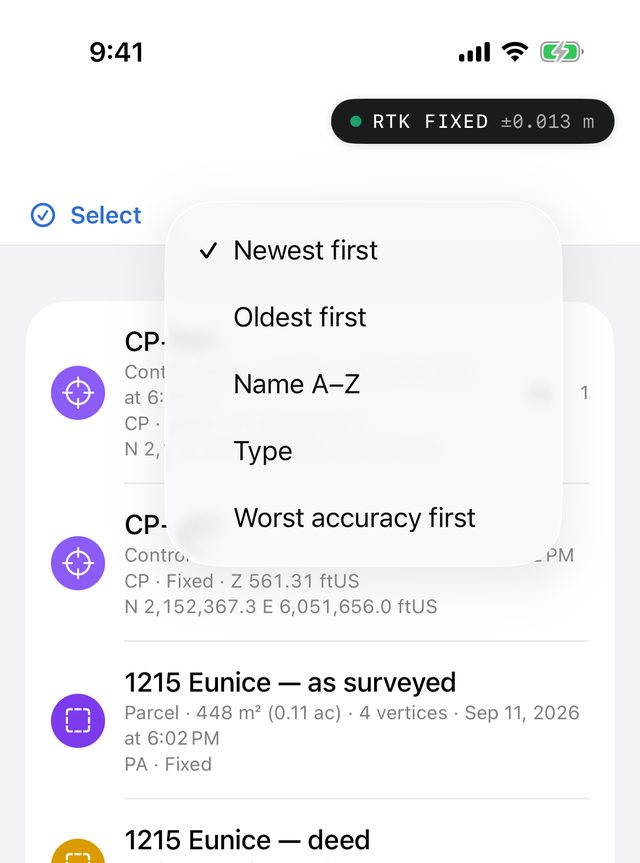
Tap the sort button next to Select. It shows the current order (for example Newest). Choose one of:
| Option | Order |
|---|---|
| Newest first | Most recently collected at the top. This is the default. |
| Oldest first | Order of collection. |
| Name A–Z | Alphabetical, with numbers in natural order (Marker 2 before Marker 10). |
| Type | Grouped by type, in the same order as the type chooser, then by name. |
| Worst accuracy first | The least accurate shots at the top. Assets with no accuracy (hand-placed or imported) go to the bottom. |
The app remembers your choice.
Delete assets
One at a time
Swipe a row to the left and tap Delete.
Several at once
- Tap Select. Each row gets a checkbox.
- Tick the assets to delete, or tap Select all. Tap Deselect all to clear the ticks.
- Tap Delete N (for example Delete 3).
- Confirm with Delete N in the dialog: "Their observations, photos and 3D captures go with them. This can't be undone."
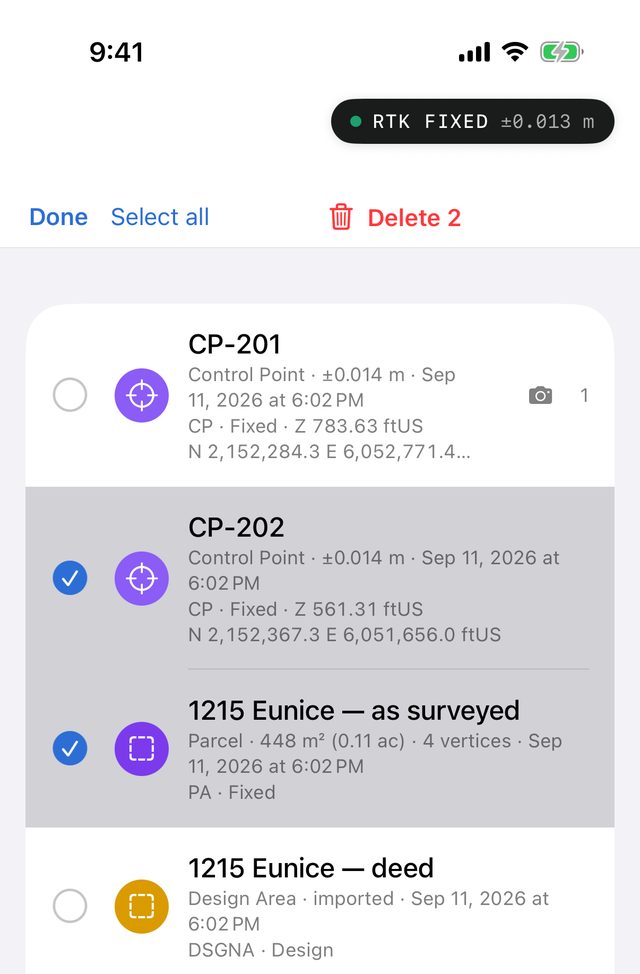
Tap Done to leave selection mode without deleting anything.
View items in AR
On devices that support world-tracking AR, the first row of the list is View items in AR. It opens the camera view with the project's assets placed as markers in the real world. It's hidden while you're selecting. See Find assets in AR.