Download maps for offline use
Save the basemap for a job site before you lose signal, choose a detail level, resume or delete downloads, and manage the map cache.
On this page
Many sites have poor or no mobile signal. Download the basemap for the area while you still have a connection, and the Survey map works there without one.
Before you start
- You need a connection for the download. Wi-Fi is best for large areas.
- On the Survey tab, move and zoom the map so it shows the area you want. The download covers exactly what the map is showing.
- If the map is tilted, the download covers the ground the screen would show with the map level, at the same centre and zoom, not everything out to the horizon. Tilting to look around doesn't make the download bigger.
Download an area
On the Survey tab, frame the job site on the 2D map.
Go to Tools → Offline maps (in the Map section).
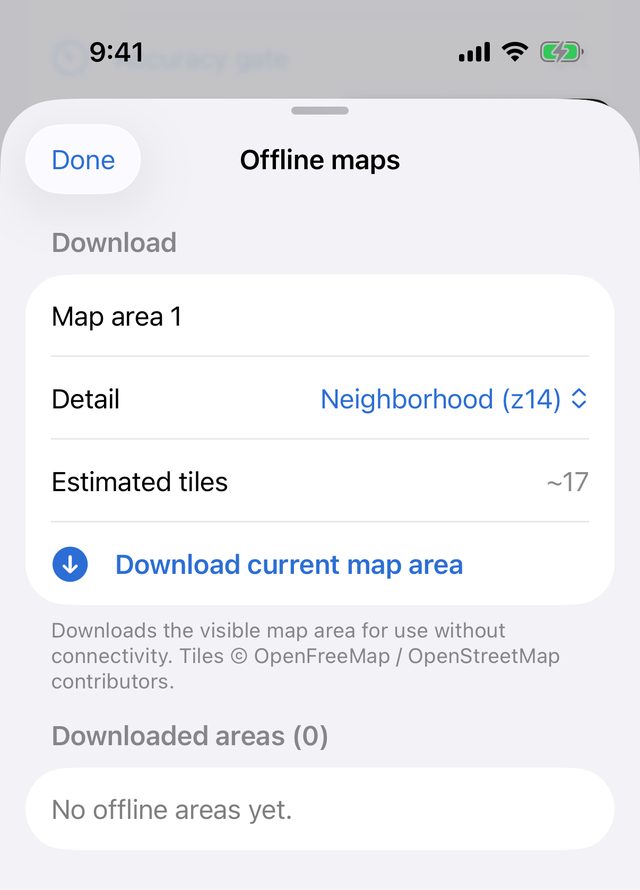
Under Download, type an Area name. A name such as Map area 1 is filled in for you.
Choose the Detail:
Detail Map zoom Good for Overview (z12) 12 Roads and towns across a wide area. Neighborhood (z14) 14 Streets and larger features. This is the default. Street (z15) 15 The most detail, for a single site. Check Estimated tiles. This is roughly how many map tiles the download needs, across every zoom level from the whole world down to the level you chose.
Tap Download current map area.
The area appears under Downloaded areas, with a progress bar and a count such as 1,204 of 3,580 resources · 12.4 MB. You can close the sheet; the download carries on.
If the sheet says Move the map to the area you want, then come back here., the Survey map hasn't reported an area yet. Go to the Survey tab, move the map a little, and come back.
Manage downloaded areas
Each area under Downloaded areas shows its name and state:
| What you see | Meaning |
|---|---|
| Progress bar and x of y resources | Still downloading. |
| Resume download | The download stopped, for example because you lost signal or the app was closed. Tap to carry on from where it stopped. |
| A green tick with the size, and N resources · available offline | Complete. The area works with no connection. |
| Unavailable | The download is in a state the app can't use. Delete it and download it again. |
To delete an area, swipe left on it and tap Delete.
What an offline area includes
- Included: the 2D basemap for the area, at every zoom level down to the detail you chose.
- Not included: your project data doesn't need downloading, because it's already stored on the phone. The 3D terrain isn't included either. It needs its own one-time download when you build the 3D site model, and once built it's kept on the phone. See View the 3D site model.
The map-style imagery on the 3D model is drawn from the same basemap, so an offline area helps there too. The Satellite surface in 3D uses a different imagery service and is only available offline for places you've already viewed.
The map cache
Apart from the areas you download on purpose, the app caches the tiles you view as you use it. You can see and clear this cache in Settings → Map cache:
| Row | What it holds |
|---|---|
| Basemap tiles (2D) | Map tiles cached while you browsed the 2D map. |
| Terrain tiles (DEM) | Elevation tiles downloaded for 3D site models. |
| Draped imagery (3D) | Map and satellite images baked onto 3D terrain. |
| Downloaded areas (kept) | How many offline areas you have, and their total size. Only shown if you have some. |
| Terrain cache limit | 250 MB, 500 MB (default) or 1 GB. The terrain and imagery caches are trimmed to this size, oldest first. |
| Clear map tile cache | Deletes the basemap tiles, terrain tiles and draped imagery. |
When you tap Clear map tile cache, the app asks you to confirm and shows how much it will free. Everything it removes downloads again when needed, so clearing only costs bandwidth. It's useful when imagery looks out of date or wrong.
Tips
- Download the evening before, on Wi-Fi. Name the area after the job so you can find it later.
- Street (z15) over a single site is usually a modest download. A wide area at street detail adds up fast, because each zoom level has four times as many tiles as the one above it.
- Open the area on the map once after it finishes, while you still have signal, to check it covers what you need.