Manage projects
Search, filter and browse your projects, switch the active one, and rename, share or delete projects from the Projects tab and the project strip.
On this page
The Projects tab is where you find, organise and tidy your jobs. The project strip above the tabs is the quick way to switch between recent ones. The key idea is the active project: it's the one every other tab writes into. Tapping a project in the list only opens it. It doesn't make it active, so you can't switch sites by accident.
The Projects tab
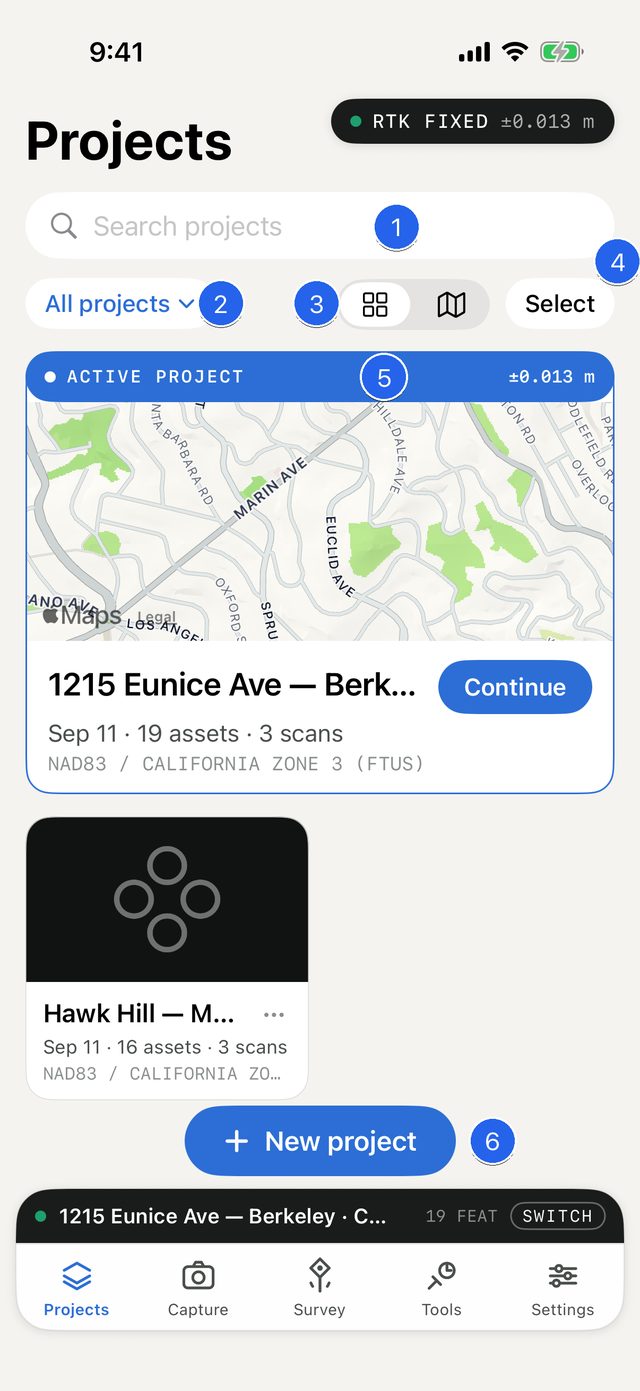
- Search projects — filters by name.
- Filter menu — all projects, or only RTK, GPS or 3D scan projects.
- Grid / map switch — cards or a map.
- Select — share or delete several projects.
- Active project card — the project you're collecting into.
- New project — creates a project.
From top to bottom:
Search projects filters by project name as you type. Tap ⓧ to clear it.
Filter menu (shows All projects at first):
Filter Shows projects that… All projects Every project. RTK Have at least one position with an RTK fixed or float solution. GPS Have field-collected positions, but none with RTK. 3D scans Have at least one 3D scan. Grid / map switch: the two icons switch between cards and a map of your projects.
Select: turns on select mode for sharing or deleting several projects at once.
New project: the button at the bottom. See Create a project.
Projects are sorted by most recent activity: the date of the newest asset, or the creation date for an empty project.
Project cards
Each card shows a picture (the newest photo, video or scan in the project, or a map placeholder), the project name, a contents line such as Sep 2 · 19 assets · 3 scans, and the coordinate system (for example NAD83 / CALIFORNIA ZONE 3 (FTUS) or WGS 84).
The active project leads the page as a wide card with a blue ACTIVE PROJECT header. The header shows your live horizontal accuracy. The card shows a map of the site and a Continue button that takes you back to the Survey tab. Tap the rest of the card to open the project's details.
Map view
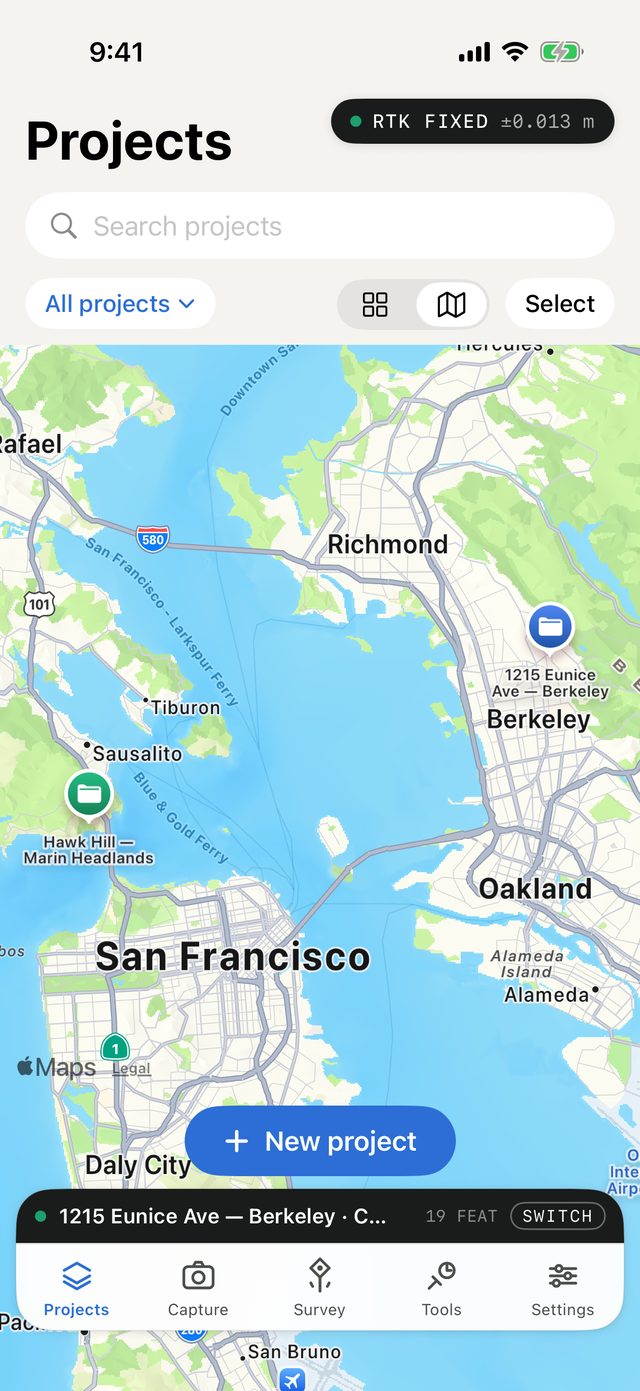
In map view, each project is a folder pin at the centre of its collected positions. The active project's pin is blue, and other pins are coloured by what the project holds (RTK, GPS, or imported design data only). Tap a pin to open that project's details.
Projects with no positions yet can't go on a map. A note at the bottom says how many are hidden, for example 2 projects without a location — see the grid.
Open, activate and deactivate
- Tap a card or map pin to open project details. See Project details and browsing.
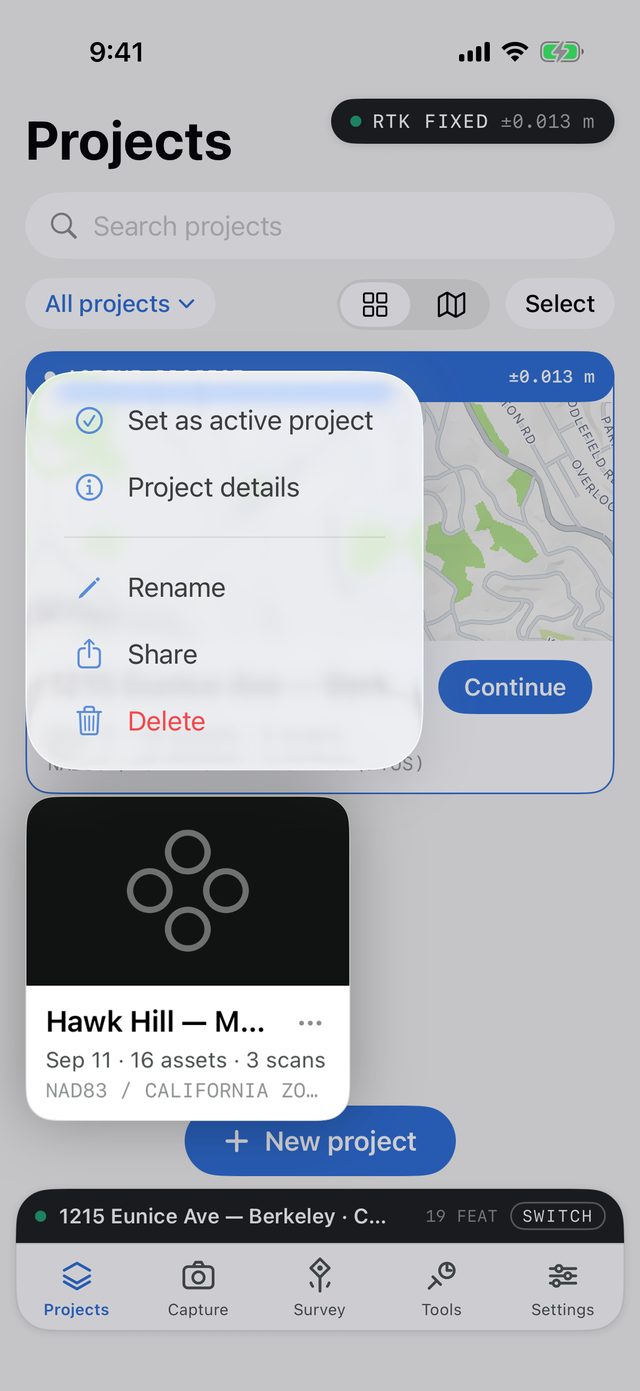
- Long-press a card, or tap its ⋯ button, to open the project menu:
| Menu item | What it does |
|---|---|
| Set as active project | Makes this the project you collect into. Shown for projects that aren't active. |
| Deactivate project | Puts the active project down, so there's no active project at all. Nothing is deleted. |
| Project details | Opens the details screen. |
| Rename | Opens Rename project. Type the new name and tap Save. A blank name is ignored. |
| Share | Builds an export bundle ZIP of the project and opens the share sheet. |
| Delete | Asks for confirmation, then deletes the project. |
The wide active project card has no ⋯ button. Long-press it for the same menu.
To send someone a link to a project instead of a file, open its details and tap Share online…. See Share a project online.
Switch from the project strip
The dark strip above the tabs shows the active project's name and the type you're collecting (for example 1215 Eunice Ave — Berkeley · Cabinet), the number of features in it (19 FEAT), and SWITCH.
- Tap the strip. The switcher rises above it.
- It lists your four most recently active projects. The current one is marked ACTIVE, and the others show their feature count.
- Tap a project to make it active, or tap New project… to create one.
Tap the strip again to close the switcher without changing anything.

The dot at the left of the strip is coloured by your current positioning quality, the same as the accuracy pill. With no project, the strip is blue and reads No active project with START.
Share or delete several projects
- Tap Select. The active project card shrinks to a normal card, and each card gets a tick circle.
- Tap cards to select them.
- At the bottom, tap Share (N) to share one export bundle ZIP per project, or Delete (N) to delete them.
- Tap Done to leave select mode.
Delete a project
When you delete one or more projects, the app asks Delete N projects? and warns that the assets, photos and 3D scans inside will be removed. The project's cached 3D site model and design surfaces are removed too. If a project was shared online, its link stops working.
You can delete the active project. The warning says so, and afterwards you have no active project.