Display units and the unit converter
Show lengths, areas and elevations in metres, feet or US survey feet, and convert lengths, angles and bearings with the unit converter.
On this page
Settings → Units decides how lengths, areas, elevations and accuracies appear on screen. Tools → Unit converter converts a length between metres and both kinds of foot, and an angle between degrees-minutes-seconds, decimal degrees and a quadrant bearing.
Choose display units
- Go to Settings.
- Under Display, tap Units and choose an option:
| Option | What you see |
|---|---|
| Both (default) | Metric first, with feet alongside, for example 46.7 m (153.1 ftUS). The foot follows the project's zone: US survey feet on a ftUS zone, international feet otherwise. |
| Meters | Metric only: metres, kilometres, square metres, hectares. |
| Feet | International feet only (1 ft = 0.3048 m). |
| US survey feet | US survey feet only (1 ftUS = 1200/3937 m), the foot ftUS state plane zones use. |
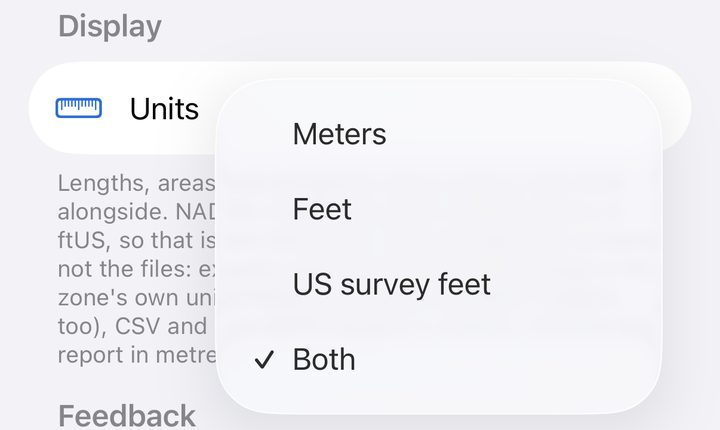
The footer under the picker says which foot Both is using for the current project, and why.
The screen changes, not the files
Units are a display preference. They never change what's stored or exported:
- Exports write northings and eastings in the zone's own unit. PNEZD, DXF and LandXML heights are in that unit too.
- CSV and GeoJSON heights are in metres, and the column names say so.
- The QA report is in metres.
So a crew can read feet on screen while the office receives exactly the same file either way.
Which unit you type in
A readout can show two units; an entry field can't. Where you type a length, the field follows the unit that leads the readout:
- Meters and Both: you type metres.
- Feet or US survey feet: you type that foot.
The field label always states its unit, for example On grade within (m) in cut and fill, or Elevation (MSL, ftUS) when editing a position.
Two screens work in the project's grid unit instead, because that's what they display:
- COGO distances are in the zone's unit, for example ftUS on a US-survey-foot zone.
- Typed northing and easting are always in the zone's unit.
Use the unit converter
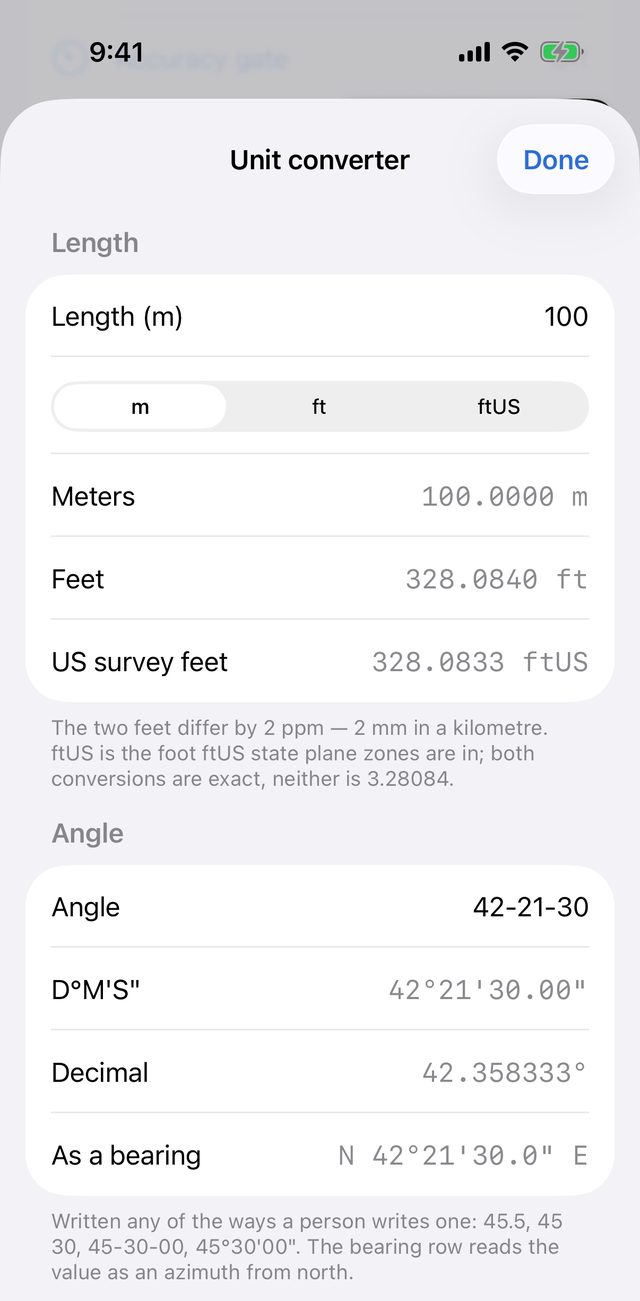
Go to Tools → Unit converter (the row reads Length · angle). Nothing you enter here is saved.
Length
- Choose the unit you're typing in with Entered in: m, ft or ftUS.
- Type a value in Length.
- Read the result in all three units, to four decimals: Meters, Feet and US survey feet.
Both conversions are exact. Neither uses 3.28084.
Angle and bearing
Type an angle in Angle in any common form:
45.545 3045-30-0045°30'00"
The converter shows:
- D°M'S": degrees, minutes and seconds to two decimals of a second.
- Decimal: decimal degrees to six places.
- As a bearing: the value read as an azimuth from north and written as a quadrant bearing. For example, 135 becomes S 45°00'00.0" E.
Minutes and seconds must be less than 60. If the entry can't be read, the app says so and shows the accepted forms.