Connect a Bluetooth receiver
Pair and connect an Emlid Reach RX, RX2 or RS4, or a Bad Elf Flex or Flex Mini, over Bluetooth, and keep it connected in the field.
On this page
OpenSurvey3D connects directly to two families of Bluetooth GNSS receivers, and you can search, pair and connect without leaving the app. For a step-by-step setup per receiver, see Receiver connection guides.
Supported receivers
| Receiver | Bluetooth | Notes |
|---|---|---|
| Emlid Reach RX, RX2, RS4 | Yes | They appear with short names like "RX" or "RX2". PIN 123456 if asked |
| Bad Elf Flex, Flex Mini | Yes | Corrections sent from this app are for the Extreme models only |
| Emlid Reach RS2 / RS2+ | No | Not certified for iOS Bluetooth. Use its Wi-Fi hotspot: see Connect a Wi-Fi receiver |
| Leica Zeno GG04 plus, FLX100 plus | Through Zeno Connect | Leica's app holds the Bluetooth link. See Connect a Leica Zeno antenna |
Before you start
- Charge the receiver and power it on.
- Make sure it isn't connected to another phone or tablet. A receiver can usually only talk to one device at a time.
- Turn on Bluetooth on your phone.
- Set the receiver up (update rate, constellations, messages) in its maker's app. See Receiver settings.
Connect the receiver
- Hold the accuracy pill to open Precision, or go to Settings → Precision & receiver.
- Tap Source. The Positioning source screen opens.
- Under Bluetooth receiver, tap Search for receivers. The iOS accessory picker opens and lists nearby receivers.
- Tap your receiver. Enter PIN 123456 if an Emlid receiver asks for one.
- Once it's paired, the app connects to it straight away. The receiver's row shows a green check mark when it's connected.
- Go back to Precision. The Source row shows the receiver's name and Connected · fixed (or whatever fix type it has), and the pill changes to RTK plus the fix type.
A receiver you've paired before, including one paired in the iOS Settings → Bluetooth screen, is already listed under Bluetooth receiver when it's on and nearby. Just tap it. Each row shows the name and the family (Emlid Reach or Bad Elf) with the model number when the receiver reports one.
To pair a second receiver, tap Search for another receiver.
At the foot of the Bluetooth receiver section, How to connect: Emlid Reach RX2, RX, RS4 and How to connect: Bad Elf Flex, Flex Mini open the matching guide in the app. They're the same as the Emlid and Bad Elf guides on this site.
Only show GNSS receivers
Only show GNSS receivers is on by default. The search then lists only names that look like a supported receiver (names starting with RX or RS, or containing Reach, Emlid, Bad Elf or Flex). If your receiver is on but doesn't show up, perhaps because it's been renamed, turn this off and search again to list every nearby Bluetooth device.
If the search doesn't work
| Message | What to do |
|---|---|
| No receivers found. … | Check the receiver is on, Bluetooth is enabled and it isn't connected to another phone. If it's on but not listed, turn off Only show GNSS receivers and search again. |
| That receiver is already paired — select it above. | Tap it in the list instead of searching. |
| Pairing failed. Power-cycle the receiver and try again. | Turn the receiver off and on, then search again. |
Connection states
The Source row on the Precision sheet always says where the connection stands:
| Source detail | Meaning |
|---|---|
| Connected · fixed (or another fix type) | Connected and delivering positions |
| Connected · no fix yet | Connected, but the receiver hasn't got a fix. Positions still come from the phone |
| Connecting… | Opening the connection |
| Waiting for receiver | The receiver isn't present: it's off, out of range or asleep. The app connects as soon as it appears |
| Connection failed | The receiver is present but refused a connection three times in a row. The reason is shown in red on the Positioning source screen |
| Not connected | You stopped the connection |
While the app is waiting, the Positioning source screen shows "Waiting for name — power it on and keep it nearby." with a Stop button.
If a Bluetooth receiver stops sending data for 10 seconds, the app treats it as dropped and waits for it to come back. Turning the receiver off and on again is the right thing to try, and the app will notice it return.
To disconnect, tap Built-in GPS at the top of the Positioning source screen.
Reconnect automatically
Reconnect automatically is on by default. It "Reconnects the last-used receiver at launch and after drops." Turn it off if you share a receiver and don't want the app to grab it every time it opens.
Receiver settings
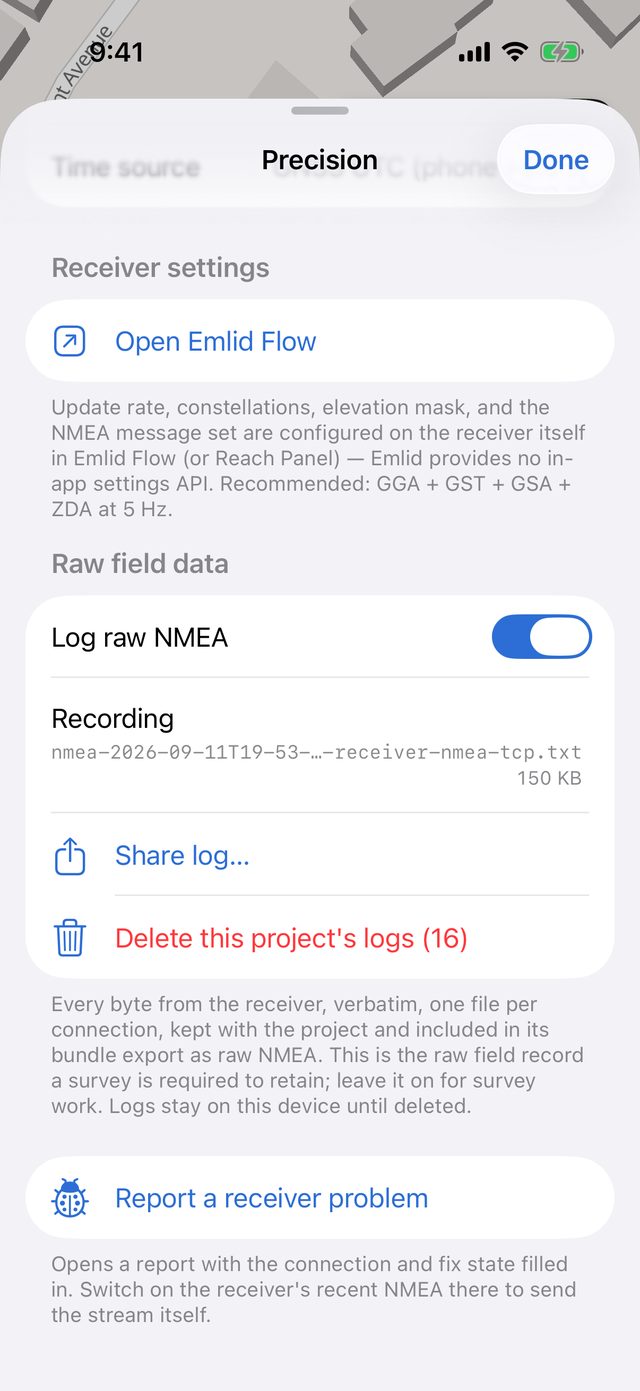
Receiver settings (update rate, constellations, elevation mask, which NMEA messages it sends) are made in the maker's app, not in OpenSurvey3D. The Precision sheet has a Receiver settings section with a link:
- Open Emlid Flow for Emlid receivers. Emlid provides no in-app settings API. The app recommends GGA + GST + GSA + ZDA at 5 Hz. GST gives honest error estimates, GSA gives the DOPs, and ZDA gives GNSS time stamps.
- Open Bad Elf Flex for Bad Elf receivers. A Flex sends GGA, RMC and GST by default, which is everything a fix needs. Without GSA there's no PDOP to record.
Corrections over Bluetooth
For RTK you need corrections. You can get them into a Bluetooth receiver in two ways. Pick one, not both:
- The maker's app runs NTRIP in the background (for example the Bad Elf Flex app). There's nothing to set up in OpenSurvey3D, and the pill still shows the fix type and correction age.
- OpenSurvey3D's NTRIP client fetches corrections from a caster and forwards them to the receiver. Set Corrections are in to the frame the caster delivers. See Get RTK corrections over NTRIP.
For Emlid receivers, corrections travel over a separate Bluetooth channel. If it didn't open, the NTRIP section says "This connection can't carry corrections to the receiver — the Bluetooth corrections channel didn't open." Positions still stream. Power-cycle the receiver and reconnect to retry.
For Bad Elf, forwarding corrections from this app is for the Extreme models, and it hasn't been confirmed on real hardware. If the fix never gets past float, use the Bad Elf Flex app for corrections instead.