Use the Survey map
Pan, zoom, tilt and rotate the 2D map, follow your location, level the map, open assets from pins and switch between map, list and 3D.
On this page
The Survey tab opens on a flat map of the active project. Every asset you collect appears on it, and the row of buttons at the bottom switches between the map, the asset list and the 3D site model.

The basemap
The map is the OpenFreeMap "Liberty" style, drawn from OpenStreetMap data. The credit and the map logo sit just above the control row so they aren't hidden by the app bar.
The first time the map is shown it needs a connection to load the style. If it can't, a banner at the top says The basemap needs a connection the first time it is shown. (or gives the error), with a Retry button. Until the basemap loads, the map is a blank canvas and pins have nothing to sit on.
After that, the tiles you've viewed are cached on the phone. To be sure an area works with no signal, download it first. See Download maps for offline use.
When the app gets its first position fix, the map centres on you at street level (zoom 17).
Move around the map
| Gesture | What it does |
|---|---|
| Drag with one finger | Pans the map. This also stops following your location. |
| Pinch | Zooms in and out. |
| Twist with two fingers | Rotates the map. |
| Drag up or down with two fingers | Tilts the map, up to 50°. |
Tilting is only a camera angle on the same flat map, which makes a run of pins easier to read as near and far. It has nothing to do with the 3D site model, which builds real terrain.
Level the map
While the map is tilted, a Level the map button (a perspective icon) appears in the control row, next to the crosshair. Tap it to put the map back flat. The button disappears once the map is level.
Follow your location
The location button at the right end of the control row cycles through three states, like Apple Maps:
| Button | State | What the map does |
|---|---|---|
| Outline arrow | Not following | Stays where you leave it. |
| Filled arrow (highlighted) | Following | Keeps you centred as you walk. If you were zoomed out, it zooms in to street level. |
| Arrow with a north line (highlighted) | Following with heading | Keeps you centred and turns the map to face the way the phone is facing. |
Tap once to follow, again to follow with heading, and a third time to stop. When you stop following with heading, the map turns back to north-up.
Panning the map by hand stops following straight away, and the button goes back to its outline. Following also stops when you switch to the list or to 3D.
Pins, lines and areas
- Points are round pins in the colour of their type, with the type's icon inside.
- Lines are drawn in the type's colour. Areas are outlined in the type's colour with a light fill. Each line and area also has a pin at its centre, which you use to select it.
- Design features (imported points and routes) have a white pin with a dashed ring in the type's colour, so you can tell them apart from what you collected.
- When you're placing a line or area by hand, the vertices you've placed so far show as small dots, joined by a line. The first vertex is drawn hollow because it's the one an area closes back to. See Place points by hand.
Open an asset from the map
- Tap a pin. A callout appears with the asset's name and type.
- Tap the callout to open the asset's details.
The details sheet is the same one you get from the list: coordinates, accuracy, photos, and actions such as Stake out / navigate to this asset, View in 3D and Find in AR.
Switch between map, list and 3D
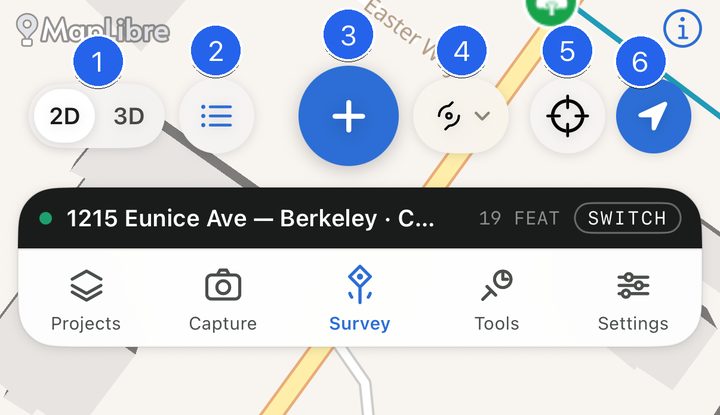
The left side of the control row has two controls:
- 2D / 3D switches between the flat map and the 3D site model. When you switch to 3D, the view starts where the map was looking, as long as the map was zoomed in to about neighbourhood level and within 20 km of the site. Otherwise it frames the whole site. Switching back hands the 3D camera's position and direction to the map. See View the 3D site model.
- List (☰) shows the project's assets as a searchable, sortable list. The button turns into a map icon; tap it again to go back to the map or 3D view you came from. See Browse the asset list.
The map keeps its position while you're in the list or in 3D, so you come back to the same place.
The rest of the control row
- ⊕ collects an asset of the active type. See Collect a point.
- Type shows the active type. Tap it to change what you're collecting.
- Crosshair turns on manual placement, so ⊕ drops a point at the centre of the map instead of at your position.