Report a problem
Send a problem report from the app, with an optional screenshot or receiver log. Reports without a signal wait on the phone and send later.
On this page
Report a problem sends a short note straight to the people who build OpenSurvey3D. The app adds a summary of its own state, so you don't have to type out your fix type or zone. It works without a signal: an unsent report waits on the phone and goes by itself later.
Three ways in
- From Settings: Settings → Report a problem, in the Feedback section.
- From the Precision sheet: tap Report a receiver problem. Use this for anything about the receiver or corrections; the report opens with the connection and fix state filled in.
- After a screenshot: take a screenshot anywhere in the app (side button + volume up). A banner asks Report a problem with this screen?. Tap Report, and the form opens with the screenshot attached.
Fill in the form
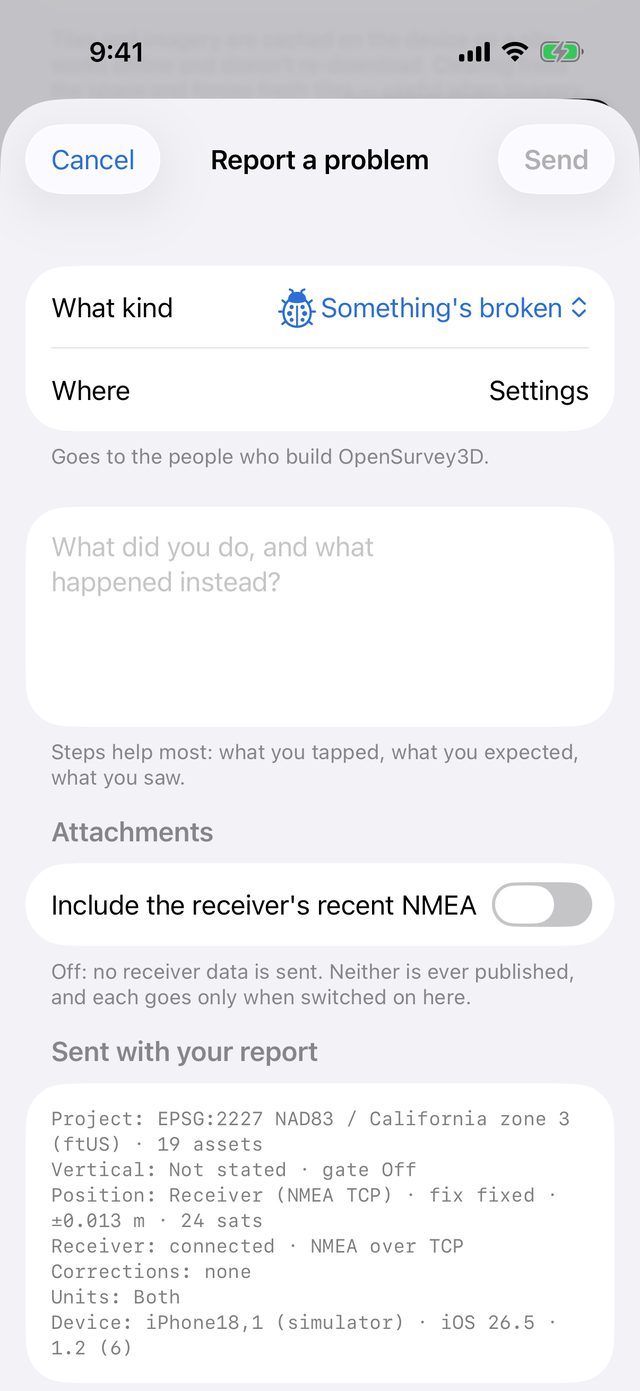
- What kind: choose Something's broken, Hard to understand, Missing something or Something else.
- Where: the screen you were on is filled in, for example Survey or Tools (a sheet). Correct it if you meant a different screen.
- Describe what happened in the text box. For a bug, steps help most: what you tapped, what you expected and what you saw.
- Check the Attachments, if shown (see below).
- Optionally fill in Class or crew and Email.
- Tap Send.
Send stays greyed out until you've written something. The form doesn't close if you swipe down, so a half-written report isn't lost. Close it with Cancel.
Attachments
- Include a screenshot: appears when you opened the form from a screenshot, and is on. The screenshot shows whatever was on screen, map included, so it shows roughly where you are. Switch it off to send without it.
- Include the receiver's recent NMEA: appears when there's a receiver log, and is off by default. It sends the last part of the raw stream from your receiver, up to 256 KB. That's a record of your positions, but it's also what makes a receiver or corrections problem reproducible.
Each attachment goes only when switched on in the form, and neither is ever published.
Class or crew, and email
Both are optional, and both are remembered on the phone for your next report.
- Class or crew lets an instructor read a class's reports together. Type the name you were given, for example KY Sept 2026.
- Email is only needed if you want a reply. Leave it blank to stay anonymous.
What's sent automatically
The Sent with your report section shows exactly what the app adds, and you can read it before sending:
- Project: the zone and the number of assets, the vertical datum and the accuracy gate setting.
- Position: the source, fix type, accuracy and satellite count.
- Receiver: the connection state, the receiver type and the correction age.
- Corrections: the corrections source or state.
- Settings and device: display units, device model, iOS version and app version.
It never includes coordinates, the project name, your surveyor name or the receiver's serial number.
After you send
- Sent — thank you with a six-character Reference, for example 3f9c2a. Give it to your instructor or quote it in an email; it identifies your report.
- Saved on this phone means there was no connection. The report sends itself the next time you open the app with a signal. It also has a reference.
While reports are waiting, the Settings row reads Report a problem with, for example, 2 waiting to send. Waiting reports are tried whenever the app opens or comes back to the foreground. A report that still hasn't sent after 14 days is dropped.
Turn off the screenshot offer
If you take screenshots for other reasons, turn off Settings → Offer to report after a screenshot. It's on by default. You can still report from Settings or the Precision sheet.