Auto capture
Collect points, or the vertices of one line or area, on a timer as you walk, using only the fix quality you allow.
On this page
Auto capture collects the active type on a timer while you walk. It saves one point every few seconds, or adds a vertex to the line or area you're walking. It only uses the fixes you allow, and it reports what it skipped instead of hiding it.
Before you start
- An active project and an active type.
- For anything better than walking-pace GPS, a receiver with RTK corrections.
Start auto capture
- Tap the type button next to ⊕ to open the type picker. Pick the type first if needed.
- Switch on Auto capture at the bottom (Collect on a timer as you walk).
- The Auto capture sheet opens. Choose:
- Capture every: 5 s, 10 s, 15 s, 30 s, 60 s, or Custom. With Custom, type any whole number of seconds from 2 to 3600.
- Only capture with: which fixes count (see the table below).
- Tap Start auto capture.
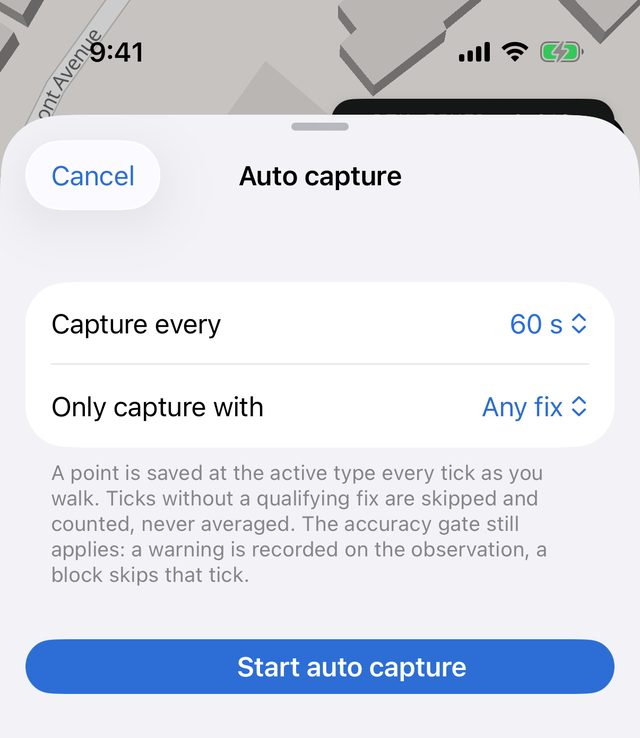
The switch stays off until you tap Start auto capture. Cancel closes the sheet without starting. Both choices are remembered for next time. The defaults are 10 s and Any fix.
| Only capture with | A tick saves only when… |
|---|---|
| Any fix | There's any valid fix, from the phone or a receiver. |
| Receiver fixes only | The fix comes from a connected receiver. |
| RTK float or fixed | The receiver reports an RTK float or fixed solution. |
| RTK fixed only | The receiver reports an RTK fixed solution. |
If the project's accuracy gate sets a stricter fix floor than you chose here, the stricter one applies. The sheet tells you when that's happening. If no type is chosen, the sheet warns No type is chosen — auto capture holds until one is.
What each tick does
- Point types: every tick saves a new point, named with the next number (Marker 12) and noted Auto-captured.
- Line and area types: every tick adds a vertex to one figure. The whole walk is filed as one line or area when you stop. For an area, walk the perimeter.
Ticks without a qualifying fix are skipped and counted. They're never averaged, downgraded, or saved anyway. A phone fix more than 10 seconds old doesn't count.
If the project's accuracy gate is on:
- Warn mode: the tick still saves, and the observation is marked as taken above the threshold, the same as tapping Save anyway.
- Block mode: that tick is skipped and counted.
The auto capture chip
While it's running, a dark chip sits above the map controls:
- a dot: green while running, grey while paused
- AUTO and the seconds until the next tick, or paused, or the reason the last tick saved nothing
- N saved (points) or N vertices (a line or area being walked)
- N skipped, once anything has been skipped
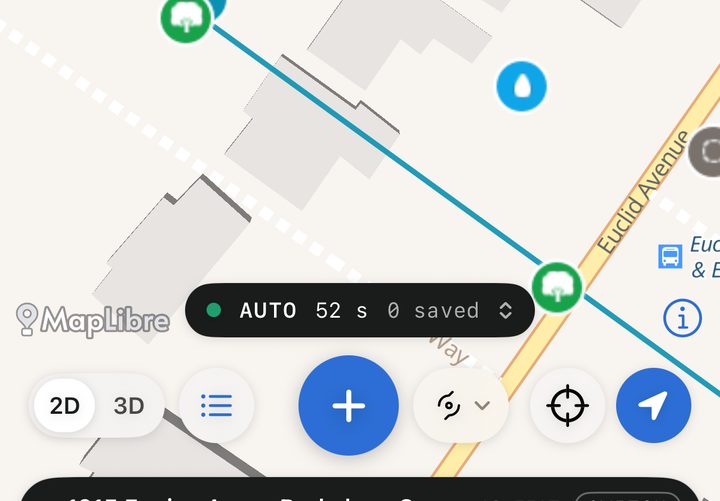
Tap the chip for its menu:
| Menu item | What it does |
|---|---|
| Pause / Resume | Stops and restarts the timer without ending the run. |
| Capture every | Changes the interval straight away. |
| Custom interval… | Opens the settings sheet to type an interval. Tap Done there to carry on. |
| Only capture with | Changes the fix filter straight away. |
| Stop auto capture | Ends the run. |
You can also stop by switching Auto capture off in the type picker.
The reasons the chip can show include waiting for a fix, waiting for rtk fixed only, … (project's accuracy gate), blocked by the accuracy gate, and no type chosen.
It only saves while you're on the map
Auto capture saves only while the Survey map is in front of you. A timer that kept saving wherever you'd gone would file a point every tick while you stood still taking a photo, or add a vertex while you read the Tools tab.
So the run holds when you:
- switch to another tab;
- open a screen that covers the map, such as the camera, a 3D capture, AR or stakeout;
- open the type picker or the Capture position sheet to collect something by hand.
Holding isn't stopping. A line or area keeps the vertices it has, and nothing is saved while you're away. When you come back to the map, the run picks up by itself and shows how long it held, for example Resumed after 45 s away from the map — nothing was saved meanwhile. If you paused it before leaving, it stays paused.
Stopping, and what happens to a walked line or area
When you stop, the app files the figure you were walking and shows a notice for a few seconds:
- Filed boundary line with 23 vertices: it was saved as one asset.
- Dropped 2 vertices — a parcel needs 3: there weren't enough vertices (2 for a line, 3 for an area), so nothing was saved.
A filed line or area records the weakest fix it was walked on. If twenty vertices were RTK fixed and one was float, the figure is recorded as float.
If you change the active type partway through a walk, the vertices so far are filed under the old type, and a new figure starts under the new one.
Things to know
- Keep the app open on the map. While auto capture is running, the app stops the screen from locking, because the timer only runs while the app is on screen. It also holds while another tab or screen covers the map.
- Switching projects stops it. Switching or deactivating the project ends the run. Any walked figure is filed into the project it was walked in.
- It doesn't restart itself. After the app is closed, auto capture is off until you start it again, so it can never quietly collect into the wrong site.
- A walk survives a crash. Each vertex of a line or area is saved to the device as you go. If the app closes mid-walk, the figure is filed on the next launch, as long as the same project is still active and there are enough vertices. It's noted Auto-captured · recovered after the app closed mid-walk, and a notice says Recovered … from the last run. Otherwise the draft is dropped.