Connect a Wi-Fi receiver
Connect any GNSS receiver that streams NMEA over TCP, such as an Emlid Reach RS2 on its Wi-Fi hotspot, by entering its address and port.
Any receiver or bridge that serves raw NMEA on a TCP port works with OpenSurvey3D over Wi-Fi. That includes the Emlid Reach RS2 and RS2+, which can't use Bluetooth with iOS apps, as well as Eos and ArduSimple-class rovers. In the app this source is called NMEA over TCP/IP.
For step-by-step setup, see the Emlid Reach RS2, RS2+ and other NMEA over Wi-Fi connection guides.
Before you start
- Set the receiver to stream NMEA over TCP, as a server. On an Emlid Reach RS2/RS2+, open Position output in Emlid Flow, turn on an output set to TCP, server role, NMEA format, and note its port (for example 9001).
- Put the phone on the same network as the receiver. For a receiver in hotspot mode, join its Wi-Fi network in the iOS Settings → Wi-Fi screen.
- For honest accuracy figures, have the receiver send GST as well as GGA. See Receiver settings.
Connect
- Hold the accuracy pill to open Precision, or go to Settings → Precision & receiver.
- Tap Source.
- Under NMEA over TCP/IP, enter the Receiver IP address (or a hostname). It starts as 192.168.42.1, the default address of an Emlid Reach in hotspot mode.
- Enter the Port your receiver streams on.
- Tap Connect.
- The first time, iOS asks to let OpenSurvey3D find devices on your local network: "Connect to a GNSS receiver on your Wi-Fi hotspot or local network to stream positions and send RTK corrections." Tap Allow.
- The row shows Connected with a green check mark, and the pill changes to RTK plus the fix type once the receiver has a fix.
Connect stays greyed out until there's an address and a port between 1 and 65535.
At the foot of the section, How to connect: Emlid Reach RS2, RS2+ and How to connect: Other receivers (NMEA over Wi-Fi) open the matching guide in the app.
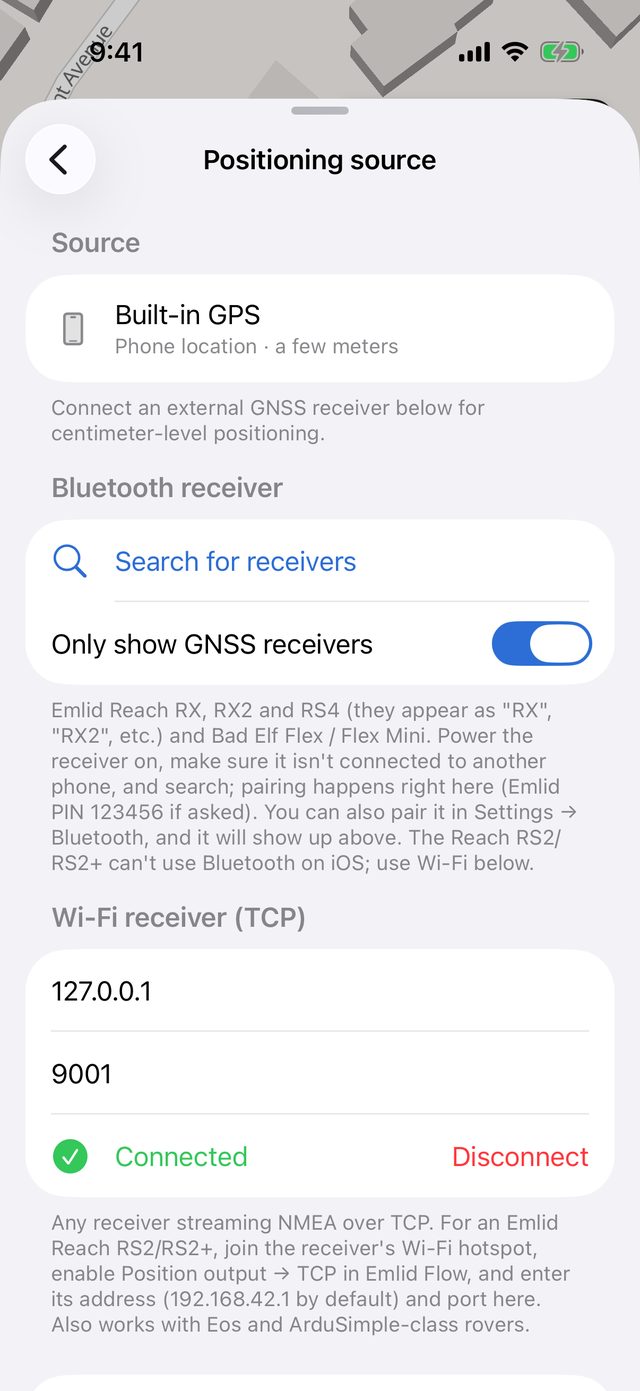
Connection states
| Row shows | Meaning |
|---|---|
| Connected | Positions are streaming. Tap Disconnect to stop |
| Connecting… | Opening the connection. Tap Stop to give up |
| Reconnecting… (attempt n) | The connection dropped or couldn't open, and the app is retrying. The reason is shown underneath. Tap Stop to give up |
| A red message | The attempt failed. Check the address and port, then tap Connect again |
When a Wi-Fi connection drops, the app keeps retrying until you stop it. It waits a little longer between attempts each time, up to 30 seconds. When you bring the app back to the foreground, it retries at once. If no data arrives for 10 seconds, the app treats the connection as dropped and starts reconnecting.
With Reconnect automatically on (the default), the app reconnects to the last receiver when it launches.
The Precision sheet's Source row shows the receiver's address and port, for example 192.168.42.1:9001. On observations the source is recorded as Receiver (NMEA TCP), with the address and port as the receiver ID.
If it won't connect
- The reason mentions local network access: you declined the permission. In the iOS Settings app, find OpenSurvey3D and turn on Local Network, then connect again.
- Connection refused: the phone reached the address, but nothing is listening on that port. Check that TCP output is on in the receiver's app and that the port matches.
- It keeps trying and never connects: check the phone is still joined to the receiver's Wi-Fi, and that the address matches the one shown in the receiver's app.
- Connected, but no fix: the receiver is streaming but hasn't got a fix yet, or it isn't sending GGA sentences. Check its position output settings.
- Connected, but nothing arrives (Emlid): check the output format is NMEA, not LLH or ERB.
- Horizontal σ is missing: the receiver isn't sending GST. The app falls back to an estimate from HDOP.
Corrections
A Wi-Fi connection can always carry corrections back to the receiver, so you can use OpenSurvey3D's NTRIP client with any TCP receiver. You can also let the receiver get its own corrections. Choose one, not both. See Get RTK corrections over NTRIP.
On a receiver's own hotspot, the phone has no internet over Wi-Fi, so OpenSurvey3D's NTRIP client needs cellular data.