Collect lines and areas
Walk a boundary, fence or parcel and add vertices by tap, automatically every 5 metres, or by averaging each corner.
On this page
Lines (boundaries, fences, paths, pipes) and areas (parcels, fields, buildings) are built from vertices: positions you record one after another as you walk. You can tap for each vertex, let the app add one every 5 metres, or average important corners.
Before you start
- An active project.
- A line or area type chosen as the active type. See Choose what to collect.
Walk a line or an area
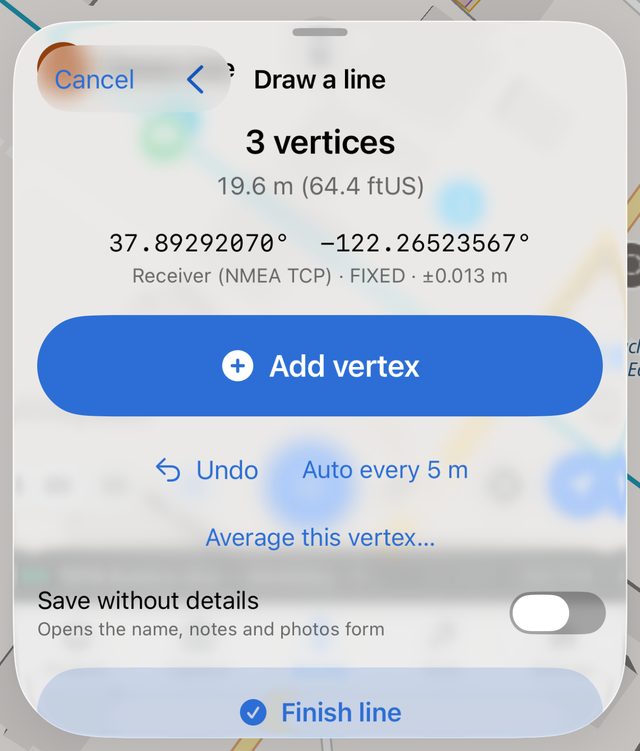
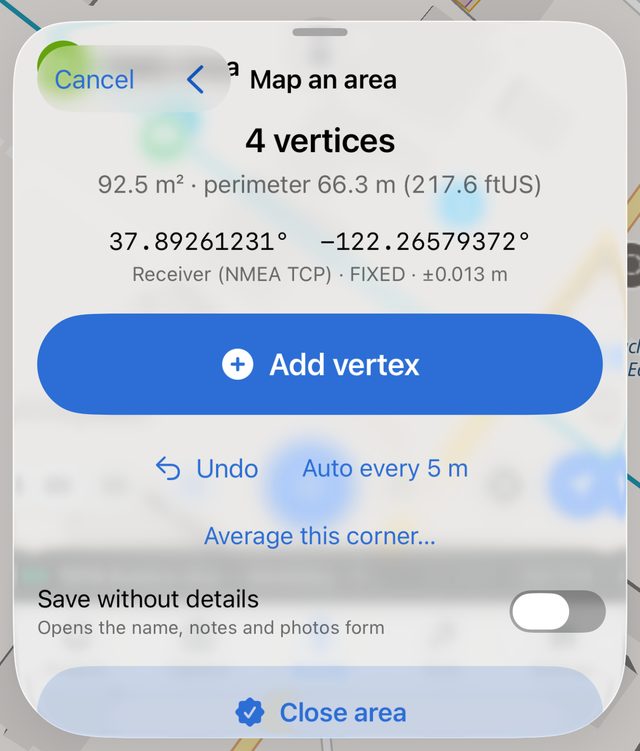
- Go to the first point and tap ⊕. The sheet opens as Draw a line or Map an area.
- Tap Add vertex. The counter at the top goes up (1 vertex, 2 vertices…).
- Walk to the next point and tap Add vertex again. Repeat along the line, or at each corner of the area.
- When you're done, tap Finish line or Close area.
- Fill in the form and tap Save, as for a point. See Collect a point.
Finish line is available once you have at least 2 vertices. Close area needs at least 3. Until then, a hint reminds you: Walk to each corner and add a vertex (needs 3+).
The capture screen
| Control | What it does |
|---|---|
| Vertex counter | The number of vertices so far. Once there are enough, it also shows a running length for a line, or area · perimeter for an area. |
| Live position | Your coordinates, the source, and the accuracy of the current fix. |
| Add vertex | Adds a vertex at your current position, using a single fix. |
| Undo | Removes the last vertex. |
| Auto every 5 m | When it's switched on, the app adds a vertex each time you've moved 5 metres from the last one. If there are no vertices yet, it adds the first straight away. Tap again to switch it off. |
| Average this vertex… / Average this corner… | Averages the next vertex instead of taking one fix. See below. |
| Save without details | Saves straight away when you finish, without the form. See Save without details. |
| Finish line / Close area | Ends the figure and moves on to the form. |
Units follow your display units.
Average a vertex or corner
Single fixes are fine for a path, but for a property corner you'll often want an average.
- Stand on the corner and tap Average this corner… (or Average this vertex…).
- The screen reads Averaging corner 3 — N samples. It shows the running mean coordinates and Spread ±x RMS · reported ±y. Before the first sample arrives, it reads Hold the pole still over the point.
- When you're happy with the spread, tap Use as corner (or Use as vertex). It's greyed out until at least one sample arrives.
- Or tap Cancel averaging to go back without adding the vertex.
There's no countdown here. You decide how long to occupy. While an average is running, Auto every 5 m doesn't add vertices.
Leaving without finishing
Tapping Back (‹) with vertices recorded asks Discard N measured vertices? Choose Discard or Keep going. You can't swipe the sheet away while you're recording a line or area. Cancel closes the sheet without saving.
What the app records
Each vertex is stored in order, with its own source, fix type, accuracy, sample count and time, the same way a point is. The form shows a summary before you save:
- Line: Vertices, Length, Worst accuracy
- Area: Vertices, Area, Perimeter, Worst accuracy
If the project has an accuracy gate, it judges the whole figure by its worst vertex, for example 2 of 14 vertices outside 0.050 m — worst 0.180 m.