Get RTK corrections over NTRIP
Connect to an NTRIP caster, state the frame its corrections are in, browse mountpoints by distance, save casters and forward corrections to your receiver.
On this page
A receiver needs corrections from a base station to get an RTK fixed solution. OpenSurvey3D has a built-in NTRIP client. It connects to a caster over the phone's internet connection and forwards the corrections to your receiver.

Before you start
- Connect your receiver first. Corrections have nowhere to go without it. See Connect a Bluetooth receiver or Connect a Wi-Fi receiver.
- Know which frame the caster's corrections are in (NAD83(2011) for most state networks, ITRF / WGS 84 for RTK2go and Emlid Caster).
- Have your caster details ready: host, port, mountpoint, and a username and password if the caster needs them.
- The phone needs an internet connection.
Connect corrections
- Hold the accuracy pill to open Precision.
- Under NTRIP corrections, fill in:
- Caster host: for example rtk2go.com, which is the starting value.
- Port: usually 2101, the starting value.
- Mountpoint: type it, or tap Browse mountpoints… to pick from the caster's list.
- Username (optional) and Password (optional): tap the eye to show or hide the password.
- Corrections are in: the frame the caster delivers. See The frame your corrections are in.
- Tap Connect corrections.
- The section shows Corrections with the amount received, Data age in seconds and, when the stream names it, the Base station. In the pill, the correction age appears and the fix should move from single to float to RTK FIXED.
Connect corrections is greyed out until you've entered a mountpoint and the receiver is connected on a link that can carry corrections.
To stop, tap Disconnect corrections.
These captures predate the Corrections are in and Base station rows.
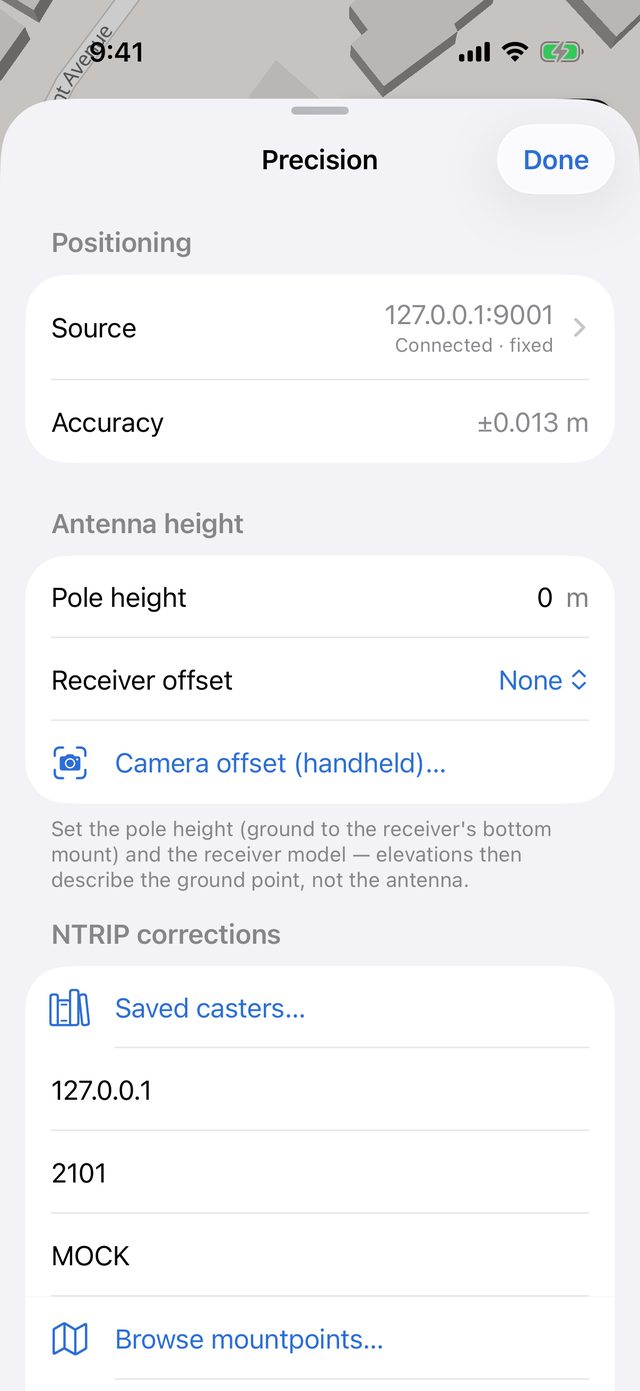
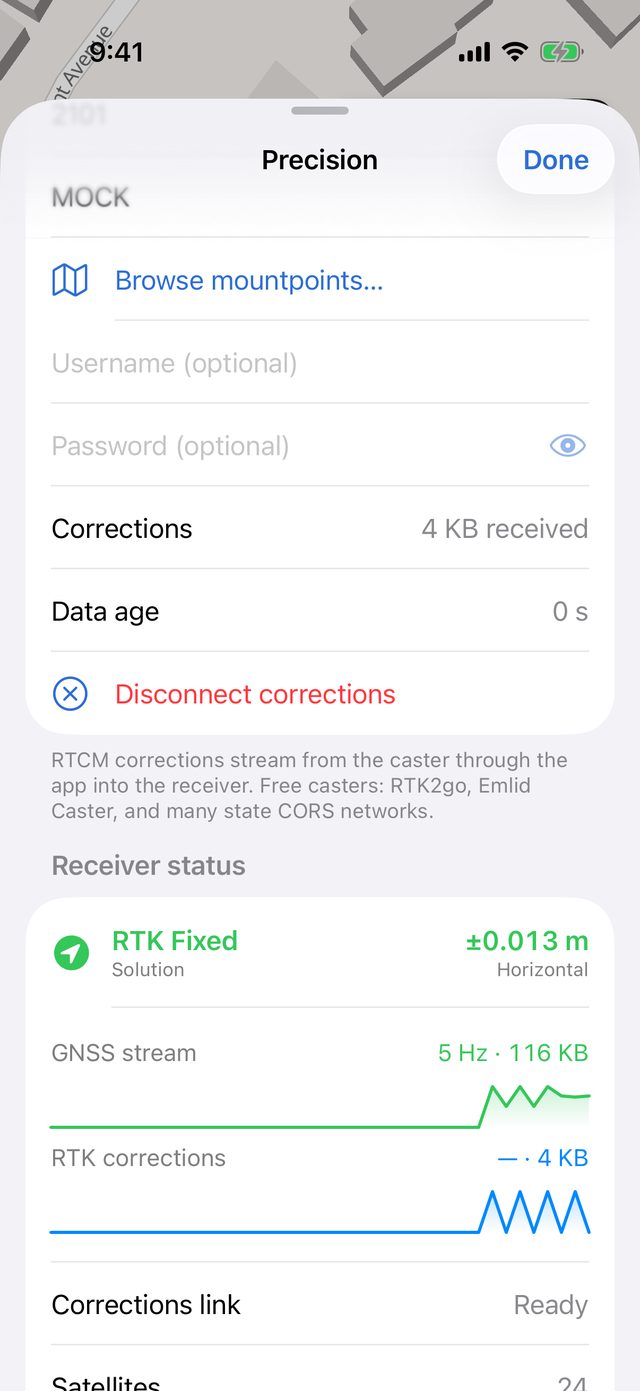
The frame your corrections are in
RTK corrections put your positions in the frame of the base station's coordinates, and nothing in the correction stream says which frame that is. A state CORS network broadcasting NAD83(2011) gives NAD83 positions. RTK2go, Emlid Caster and most single bases are in ITRF / WGS 84, which is about 1–2 m from NAD83 across the US. The fix still reads RTK FIXED at a centimetre either way, so you have to say which it is.
Under NTRIP corrections, tap Corrections are in and pick:
| Option | Typical sources |
|---|---|
| Not stated | The default. The app doesn't know, and says so |
| NAD83(2011) | US state CORS and RTN networks |
| ITRF / WGS 84 | RTK2go, Emlid Caster, most single bases |
| ETRS89 | European national networks |
The answer is remembered per caster host, because a network's mountpoints share a frame. With a Leica Zeno, it's remembered for Zeno Connect. The picker is greyed out until there's a caster host.
What happens next depends on your project's coordinate system:
- The frame matches the zone's datum (for example NAD83(2011) corrections on a NAD83 state plane zone): positions are used as received. Nothing is shown.
- ITRF / WGS 84 corrections on a NAD83 zone: each fix is shifted from ITRF2020 to NAD83(2011) (EPSG:10334) at its own date, before it's used for stakeout, averaged or saved. The note under the picker says so. Ground motion since 2010 isn't modelled: millimetres a year in the interior, centimetres on the West Coast. Tie the job to control. The shift applies inside its published area (CONUS, Alaska, Puerto Rico and the US Virgin Islands).
- Any other mismatch (for example ETRS89 corrections on a NAD83 zone): no shift is applied. A red warning says how far off the grid every position will be, and repeats at the top of the Precision sheet while corrections are flowing. Use a correction source in the zone's datum, or change the project's zone.
- Not stated: an orange warning says that if the corrections aren't in the zone's datum, positions will be off the grid with nothing on screen to show it.
Without a coordinate system on the project, the app can't judge, and shows nothing.
The base station
Most single-base mountpoints, and some networks, send the reference station's ID and position in the corrections themselves (RTCM messages 1005 and 1006). When they do, the NTRIP section shows a Base station row while connected, for example 1234 · 38.20090, -84.87330, and each corrected fix records:
- the station ID,
- the station's position (latitude, longitude and ellipsoidal height), in the frame the corrections are in,
- the distance from you to the base, when the receiver doesn't report one itself.
VRS networks often send no single station, so there's nothing to record. The record says nothing rather than guessing.
Browse mountpoints
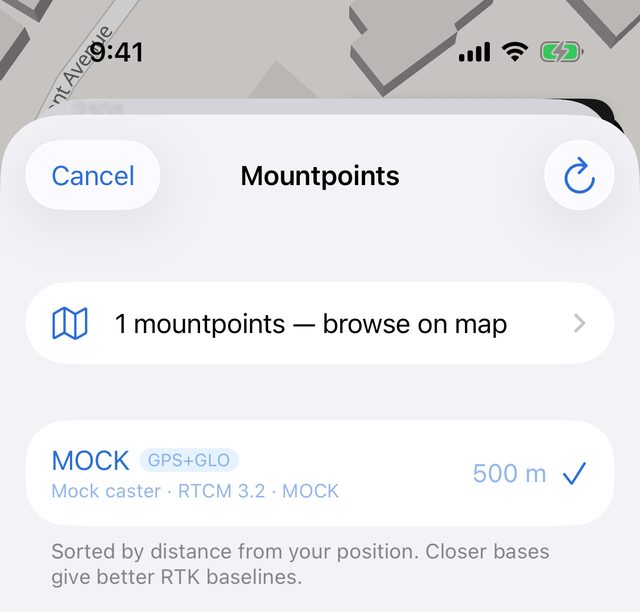
Browse mountpoints… downloads the caster's sourcetable, its list of streams, using the host, port and login you've entered.
- The list is sorted by distance from your position, closest first: "Closer bases give better RTK baselines." Without a position it's alphabetical.
- Search by name, city, network, country, format or constellation.
- Each row shows the mountpoint name, a lock if it needs a login, a $ if the caster marks it as fee-based, the constellations, the format and network, and the distance.
- Tap a row to use it. A check mark shows the one currently selected.
- Tap browse on map at the top to see the mountpoints on a map (Map or Satellite). Purple markers are available and green is your current one. Tap a marker for details: Station, Format, Messages, Constellations, Network, Country, Distance, Bitrate, Sends GGA and Login required. Then tap Use this mountpoint. Mountpoints without coordinates are listed but can't be mapped.
- Use the refresh button to reload the list. If it fails, you see Couldn't load mountpoints with the reason and Retry.
Saved casters
Tap Saved casters… to keep caster settings for one-tap reuse.
- Tap an entry to load its host, port, mountpoint, username and password into the connection fields. The active one has a green check mark.
- Tap + to save the settings currently in the fields as a new entry. Give it a Name. The Add caster sheet needs a name and a host before Save works.
- Swipe left on an entry for Edit and Delete.
The list starts with three entries:
| Entry | Host |
|---|---|
| RTK2go (community) | rtk2go.com |
| Emlid Caster | caster.emlid.com |
| KYCORS (Kentucky Transportation Cabinet) | Not set: "Address not set — swipe to edit" |
If you delete one of these, it stays deleted.
KYCORS
KYCORS is free for Kentucky users. Register at kycors.ky.gov and KYTC emails you the caster address, port and your login. Swipe the KYCORS entry, tap Edit, and fill in Host, Port, Username and Password. Its mountpoints are VRS (RTCM3), and the app sends your position to the caster automatically.
Your position is sent to the caster
Network (VRS) casters need to know roughly where you are to build corrections for your location. When corrections connect, and every 10 seconds after, the app sends your position to the caster as an NMEA GGA sentence. It uses the receiver's position while the receiver is delivering fixes, and the phone's position otherwise. The mountpoint details show Sends GGA: Yes (VRS) for streams that expect it.
Passwords and privacy
- The password for the connection fields, and each saved caster's password, are stored in the iOS Keychain, never in plain text.
- On each observation the app records where corrections came from as host:port/MOUNTPOINT, the frame you stated for them, any datum shift applied, and the base station when the stream names one. Your username and password are never recorded. The source is only recorded while corrections are actually reaching the receiver.
Connection states and errors
| Shows | Meaning |
|---|---|
| Connecting to caster… | Opening the connection. Stop cancels |
| Reconnecting to caster… (attempt n) | The connection dropped and the app is retrying, waiting longer each time (up to 30 seconds). Retries pause while the receiver itself is disconnected. Stop cancels |
| Mountpoint not found — caster returned its sourcetable. Check the mountpoint name. | The mountpoint name is wrong. Names are usually case-sensitive |
| Unauthorized — check NTRIP username/password. | The login was rejected |
| Invalid port | The port number isn't valid |
If a caster accepts the connection but sends nothing within 15 seconds, which usually means the wrong port, the app drops it and retries.
The fix never gets better than float
- Check the pill's correction age. no corrections or a large, red-orange age means corrections aren't reaching the receiver.
- Check the RTK corrections graph in Receiver status. If bytes are arriving from the caster but the receiver isn't using them, the problem is between the app and the receiver.
- Check Corrections link in Receiver status. Not available means the Bluetooth link can't carry corrections. Power-cycle the receiver and reconnect.
- Check the base distance. Long baselines take longer to fix and may not fix at all. Pick a closer mountpoint.
- Check the format. The receiver must support the stream's format (usually RTCM 3) and constellations.
- Bad Elf receivers: forwarding corrections from this app is for Extreme models and hasn't been confirmed on hardware. If it stays at float, run NTRIP from the Bad Elf Flex app instead.
- Give it time and sky. Under trees or near buildings, a fix can take a long time or never come.
What the app records
With corrections reaching the receiver, each fix records:
| Record | Where you see it |
|---|---|
| Correction source, host:port/MOUNTPOINT (or Zeno Connect) | Corrections on the asset, correction_source in CSV and GeoJSON |
| The frame you stated | Correction frame on the asset (Not stated if you didn't), correction_frame |
| The datum shift applied, with its epoch, for example EPSG:10334 ITRF2020 to NAD83(2011) at 2026.774 | Datum shift on the asset, frame_shift |
| Base station ID and position | Base station on the asset, base_station_id, base_lat, base_lon and base_h_ellipsoidal_m in CSV, base_station in GeoJSON |
| Distance to the base | Baseline on the asset, base_distance_m |
The raw NMEA log always keeps the position exactly as the receiver sent it, before any shift.
The QA report counts fixes shifted from ITRF2020 to NAD83(2011), flags corrected fixes with no stated frame, and flags as critical any fix whose stated frame doesn't match the project's zone and wasn't shifted. See QA report.