Set an accuracy gate
Warn about or block saves that are above an accuracy threshold or below a fix type, such as RTK fixed only, for one project.
On this page
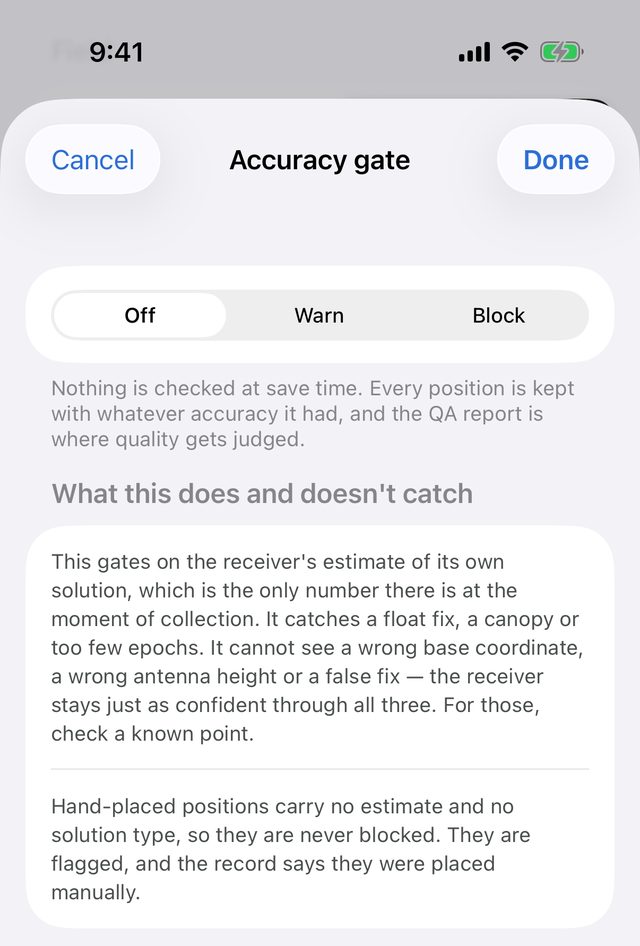
The accuracy gate checks each measurement when you save it. You set a threshold and, if you like, a minimum fix type, and the app either warns you or refuses the save when a measurement doesn't meet them. It's off by default and set per project, because the tolerance belongs to the job.
Before you start
- Open the project you want to set it for. The gate applies only to that project.
Turn on the gate
Go to Tools → Accuracy gate. The row shows the current setting, for example Off or Block above 0.050 m · RTK fixed only.
Under When a fix is above the threshold, pick a mode:
Mode What happens at save Off Nothing is checked. Every position is kept with whatever accuracy it had, and the QA report is where quality gets judged. Warn Saving asks first. If you save anyway, the record keeps the threshold that stood, so the QA report can find every observation saved past it. Block Saves outside the gate are refused. Nothing is thrown away: the measurement stays in hand so you can re-take it or change this setting. Enter a Threshold in metres, or tap a preset: 0.02, 0.05, 0.10, 0.50 or 1.00. The default is 0.050 m. Any value from 0.001 to 1000 m is accepted.
Choose a Fix type:
- Any fix: only the threshold applies.
- RTK float or better
- RTK fixed only
Tap Done.
The threshold is compared against the receiver's own horizontal estimate for each vertex. For a line or an area, the worst vertex decides.
What you see when you save
If a measurement fails the gate, an alert explains why before anything is saved. For example:
- 0.083 m — outside this project's 0.050 m threshold
- 3 of 12 vertices outside 0.050 m — worst 0.140 m
- Float solution — this job requires RTK fixed
The message explains what the number is and how to get past it.
- Warn offers Save anyway and Keep editing. Save anyway saves the measurement and marks the failing positions with the threshold they were saved past.
- Block offers only Keep the measurement. That closes the alert and keeps you in the form with the measurement still there. Wait for a better fix and re-take it, or change the gate in Tools → Accuracy gate.
A measurement that passes on the threshold but fails the fix type isn't marked separately. Its fix type is already stored exactly as the receiver reported it, so a float saved in a fixed-only job shows in the QA report and the CSV.
What it can and can't catch
The gate works on the receiver's estimate of its own solution, the only number there is when you save. It catches a float fix, a canopy or too few epochs. It can't see a wrong base coordinate, a wrong antenna height or a false fix: the receiver stays just as confident through all three. For those, check a known point.
Some positions are never blocked, only flagged:
- Hand-placed points (from the map crosshair) carry no accuracy estimate and no fix type. The record says they were placed manually.
- Positions relayed by iOS from a paired but unconnected receiver have an unknown fix type. See Phone GPS or a receiver.
Phone GPS fixes are never RTK, so they fail either RTK Fix type setting.
What it applies to
The gate applies when you collect an asset: points, lines and areas, including auto capture. It doesn't apply to:
- Recorded tracks: a continuous walking line.
- 3D scan positions: they have their own checks when you lock the scan position.
- Check shots: the point of a check shot is to record how far off it was, however bad.
With auto capture
Auto capture has its own Only capture with setting. When the project's gate sets a stricter fix type, the gate wins. The auto capture sheet says "This project's accuracy gate requires rtk fixed only, which overrides a looser choice here."
While running:
- Fixes below the required type are skipped, and auto capture shows Waiting for rtk fixed only (project's accuracy gate).
- In Warn mode, a position above the threshold is saved and marked, just as if you'd tapped Save anyway. Nobody is watching the screen to answer an alert.
- In Block mode, it isn't saved, and auto capture shows Blocked by the accuracy gate.