Set up feature codes and attributes
Edit codes, CAD layers and attribute fields on the phone, add your own codes, or add the Kentucky boundary set in one tap.
On this page
Every type you collect, such as Manhole, Valve or Control Point, is also a feature code. It has:
- a short code that the crew calls out,
- a layer it lands on in CAD,
- a set of attribute fields to fill in.
You can edit all of these on the phone in Tools → Feature codes, and add codes of your own. No desktop setup is needed.
Where codes go
The code and layer travel into every export, so the office's own standard can pick the data up without retyping:
| Export | What it carries |
|---|---|
| CSV | A code column, plus one column per attribute. |
| Point file (PNEZD) | The description is the code and the point name. |
| GeoJSON | code and layer properties, and the attributes with their natural types (numbers stay numbers). |
| DXF | Each entity is drawn on its type's layer. |
| LandXML | The code as the point code. |
| GeoPackage and Shapefile | Code and layer fields. |
The code also shows in the asset list and on the collect form, and you can search the list by code.
Edit a code
- Go to Tools → Feature codes. The row shows how many types you have.
- Tap a type. Each row shows its code and layer, and a count if it has attributes.
- Under Identity, change the Code (for example
MH) or the Layer. An empty layer falls back to the code. Match the receiving office's CAD layer names and their existing symbols pick the data up. - Changes save when you go back.
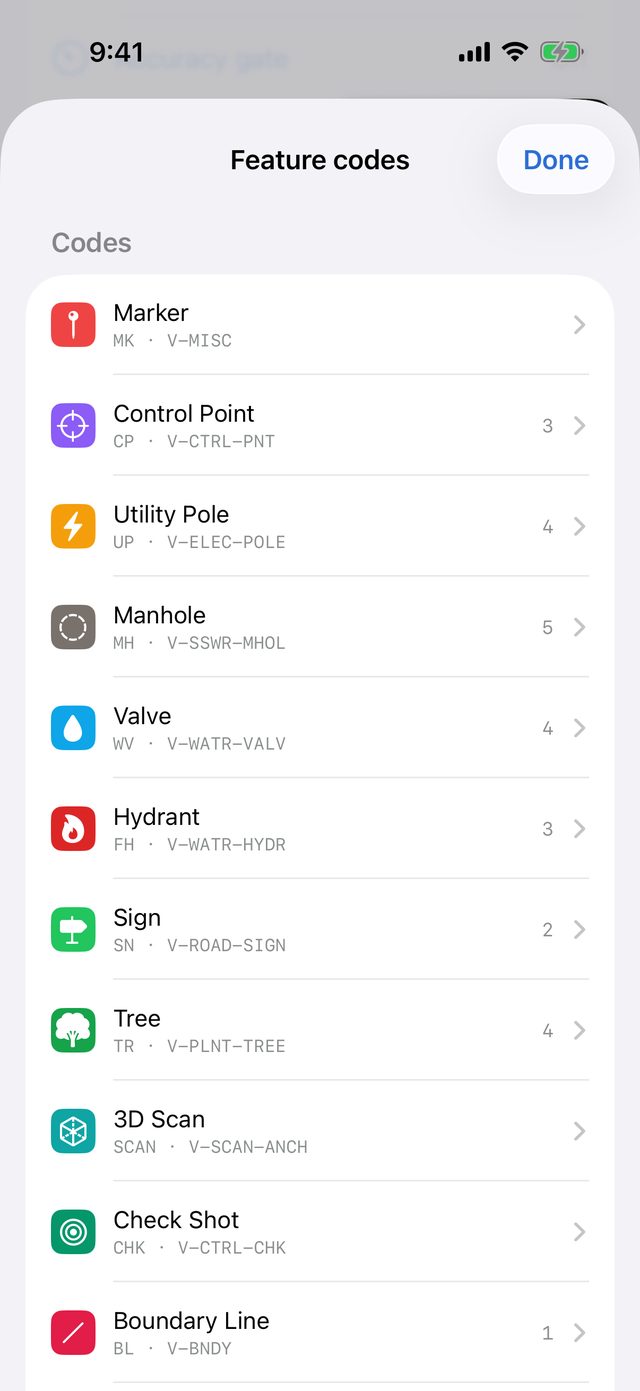
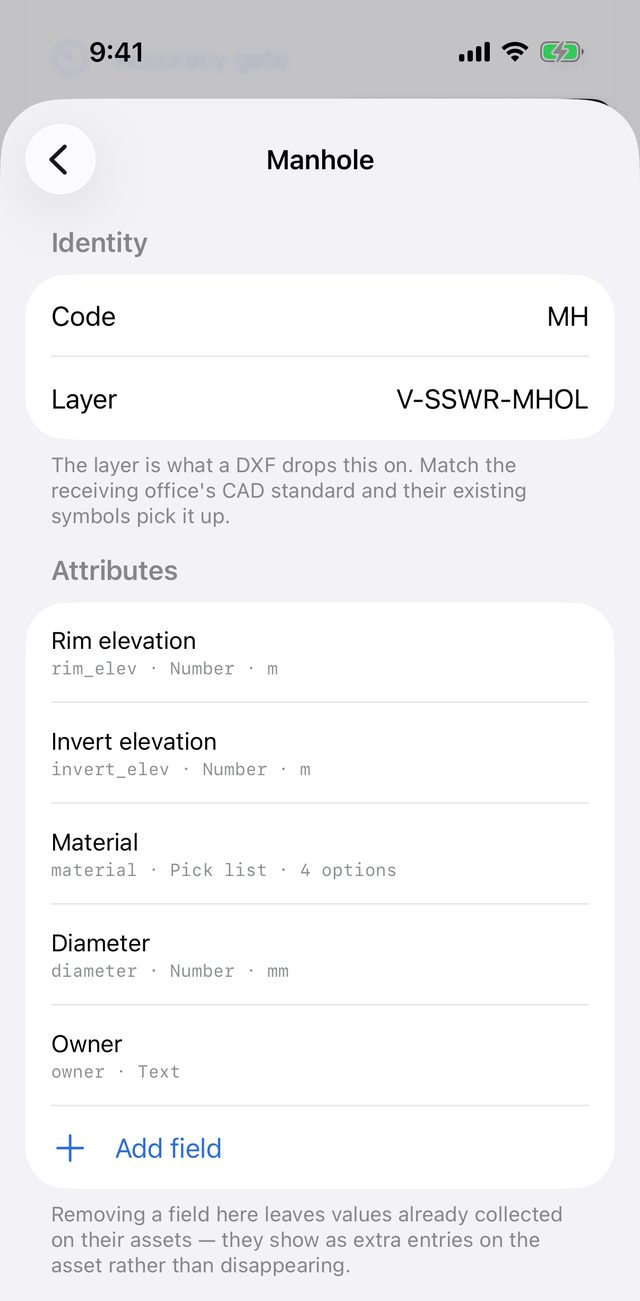
The built-in types come with codes and layers already set, for example MH on V-SSWR-MHOL for manholes and CP on V-CTRL-PNT for control points.
Add attribute fields
- Open a type and tap Add field under Attributes.
- Type a Label. The app derives the export column name from it and shows it, for example Exports as the column
pipe_material. - Choose a Type:
| Type | Use it for |
|---|---|
| Text | Free text, such as an owner or designation. |
| Number | Measurements. Add a Unit (for example m, mm, cm) so nobody guesses. |
| Pick list | A fixed set of Options, typed comma-separated, such as Concrete, Brick, PVC. Best for anything the office will filter or symbolise on. |
| Yes / no | A switch, such as In service. |
| Date | A calendar date. |
- Turn on Required if the crew must fill it in. Required fields show REQUIRED in the list. The app warns when a required field is empty on save but never blocks the save: a recorded gap is better than a lost point.
- Tap Add.
Swipe a field to delete it. Values already collected aren't lost: they stay on their assets and show as extra entries on the asset.
Add your own code
- In Tools → Feature codes, tap Add feature code.
- Under New code:
- Type a name, such as Iron pin found.
- Type a Code, such as IPF. It's converted to capitals.
- Optionally type a Layer, such as V-BNDY. Leave it empty and it falls back to the code.
- Pick the Geometry: Point, Line or Area.
- Pick a Symbol and a Colour for the map marker.
- Tap Add.
A code that's already in the library is refused, with a note saying so. Two types exporting under one code would be indistinguishable in a CSV. New codes appear at the end of the type chooser.
Add the Kentucky boundary codes
The Add feature code sheet has a Starter set section with Add Kentucky boundary codes. One tap adds:
| Code | Name | Layer |
|---|---|---|
| IPF | Iron pin found | V-BNDY |
| IPS | Iron pin set (5/8" rebar & cap) | V-BNDY |
| CM | Concrete monument | V-BNDY |
| PK | PK nail | V-BNDY |
| MAG | Mag nail | V-BNDY |
| STN | Stone | V-BNDY |
| FCP | Fence corner post | V-BNDY |
| WIT | Witness / reference monument | V-BNDY |
| TP | Traverse point | V-CTRL |
| BM | Benchmark | V-CTRL |
All ten are points. Monuments land on V-BNDY and control on V-CTRL, so a plat drawn from the DXF has them on separate layers. Codes you already have are skipped, and your edits to them are kept. The button shows how many it will add, and disappears once you have them all.
Point names number themselves
When you collect, the suggested name is the type's name and the next number, such as Iron pin found 4. The number is one more than the highest number any point of that type already ends in. Deleting Iron pin found 2 doesn't free up "2", so names never repeat within a project, in the list, the export or the PNEZD file. Names you type yourself without a trailing number don't affect the sequence.